











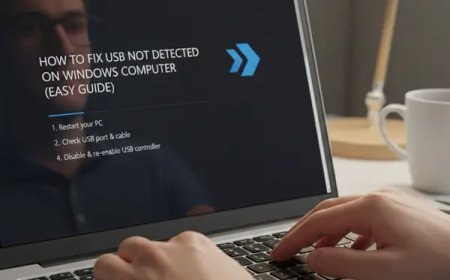








How to Fix USB Not Detected on Windows Computer (Easy Guide)
USB not detected on your computer? Learn simple and proven methods to fix USB not recognized issues without installing any third-party software.
How to Fix USB Not Detected on Computer (Step-by-Step Guide That Actually Works)
Few things are more frustrating than plugging in a USB device and seeing… nothing happen.
No sound.
No pop-up.
No device detected.
I’ve faced this issue many times—at office systems, client laptops, even my own computer—especially when I was in a hurry to copy files or install drivers. The good news is: most USB not detected problems are easy to fix, and you usually don’t need any technician or third-party software.
Let’s fix it step by step, the same way I personally troubleshoot it.
Why Is My USB Not Detected? (Common Reasons)
Before jumping into solutions, it helps to know why this happens:
-
Faulty USB port
-
Damaged USB cable or pen drive
-
Power supply issue
-
Outdated or corrupted USB drivers
-
Windows settings or software conflict
-
File system error in the USB device
In most cases, the issue is not serious—just a small setting or connection problem.
Step 1: Try the Obvious (But Often Ignored)
I know this sounds basic, but trust me—this alone fixes the problem many times.
✔ Remove the USB device
✔ Restart your computer
✔ Plug the USB into a different USB port
✔ If possible, try the USB on another computer
👉 If the USB works on another PC, your computer is the issue.
👉 If it doesn’t work anywhere, the USB device itself may be faulty.
Step 2: Check for Power Issues (Very Common)
Sometimes USB ports don’t get enough power.
Quick fixes that work:
-
Avoid USB hubs temporarily
-
Plug the USB directly into the CPU or laptop
-
For external hard drives, use their power adapter
Low power is a silent culprit—especially on older PCs.
Step 3: Use Disk Management (Hidden But Powerful)
Many times, Windows detects the USB but doesn’t show it.
Do this:
-
Press Windows + X
-
Click Disk Management
-
Look for a removable drive without a letter
If you see it:
-
Right-click → Change Drive Letter
-
Assign a new letter → OK
📌 This method has saved me more USB drives than I can count.
Step 4: Update or Reinstall USB Drivers
Driver issues are a major cause of USB not detected errors.
Steps:
-
Press Windows + X
-
Open Device Manager
-
Expand Universal Serial Bus controllers
-
Right-click each USB device → Uninstall
-
Restart your computer
Windows will automatically reinstall fresh drivers.
✔ Safe
✔ No data loss
✔ Very effective
Step 5: Disable USB Power Saving (Highly Recommended)
Windows sometimes turns off USB ports to save power.
Here’s how to stop that:
-
Open Device Manager
-
Right-click USB Root Hub → Properties
-
Go to Power Management
-
Uncheck: Allow the computer to turn off…
-
Click OK
Do this for all USB Root Hub entries.
Step 6: Check for File System Errors
If your USB is detected but won’t open:
-
Open This PC
-
Right-click USB drive
-
Select Properties → Tools
-
Click Check
Windows will repair minor errors automatically.
Step 7: Scan for Windows Updates
Outdated system files can cause USB detection issues.
-
Go to Settings → Windows Update
-
Install pending updates
-
Restart your system
I’ve personally seen USB ports come back to life after a simple update.
When Is the USB Device Actually Dead?
Sometimes, honesty is important.
Your USB may be damaged if:
-
It heats up abnormally
-
It’s not detected on any device
-
Physical connector is loose or broken
In that case, data recovery tools or professional help may be required.
Common Mistakes to Avoid
❌ Don’t force the USB into the port
❌ Don’t format without checking data importance
❌ Don’t install random driver software from unknown sites
These mistakes often make the problem worse.
What's Your Reaction?
 Like
0
Like
0
 Dislike
0
Dislike
0
 Love
0
Love
0
 Funny
0
Funny
0
 Angry
0
Angry
0
 Sad
0
Sad
0
 Wow
0
Wow
0