































How to Take Screenshot on Computer Without Any Third-Party App (Simple & Practical Guide)
Have you ever needed to quickly save what’s on your computer screen—maybe an error message, an online bill, a work document, or a WhatsApp Web chat—and realized you don’t want to install any extra software just for a screenshot?
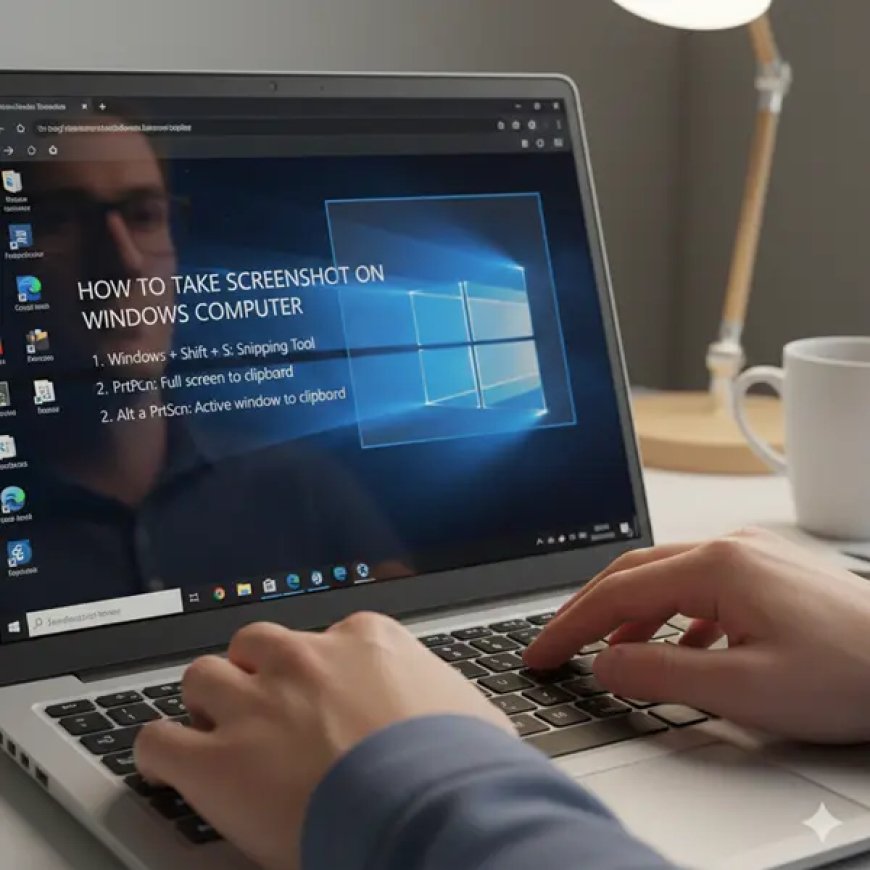
How to Take Screenshot on Windows Computer (Without Any App)
1. Use the Print Screen (PrtScn) Key – The Classic Method
This is the oldest and most reliable way.
What it does:
-
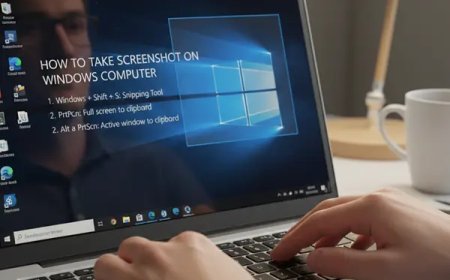
Press PrtScn → captures the entire screen
-
Screenshot is copied to clipboard
How to save it:
-
Press PrtScn
-
Open Paint (or Word)
-
Press Ctrl + V
-
Save the image
📌 Best for: Beginners and quick full-screen captures
2. Alt + PrtScn – Screenshot of Only the Active Window
This one is a lifesaver when you don’t want clutter.
Steps:
-
Click on the window you want
-
Press Alt + PrtScn
-
Paste it in Paint or any document
📌 Best for: Error messages, browser windows, or single apps
3. Windows + PrtScn – Auto Save Screenshot (My Favorite)
This is the method I personally use most often.
What happens:
-
Press Windows + PrtScn
-
Screen briefly dims
-
Screenshot automatically saves
Where to find it:Pictures → Screenshots
📌 Best for: Fast work, tutorials, or repeated screenshots
4. Use Snipping Tool / Snip & Sketch (Built-In)
Most Windows computers already have this.
How to use:
-
Press Windows + Shift + S
-
Select area, window, or full screen
-
Screenshot is copied instantly
📌 Best for: Cropping exactly what you need
How to Take Screenshot on Mac (Without Any App)
Mac makes screenshots surprisingly smooth.
1. Command + Shift + 3 – Full Screen Screenshot
-
Takes screenshot of entire screen
-
Automatically saved to Desktop
Simple. No extra steps.
2. Command + Shift + 4 – Select Specific Area
This is my go-to on Mac.
Steps:
-
Press Command + Shift + 4
-
Drag to select area
-
Release to capture
Perfect for clean, focused screenshots.
3. Command + Shift + 5 – Screenshot Control Panel
This opens Apple’s built-in screenshot toolbar.
From here you can:
-
Capture full screen
-
Capture window
-
Record screen (yes, without any app!)
📌 Best for: Advanced users and screen recordings
Where Do Screenshots Get Saved?
| System | Save Location |
|---|---|
| Windows (Win + PrtScn) | Pictures → Screenshots |
| Windows (Clipboard) | Paste manually |
| Mac | Desktop (by default) |
You can always change the save location later.
Common Screenshot Problems (And Easy Fixes)
Screenshot not saving?
→ Check if you’re using clipboard-only methods like PrtScn.
Keyboard key not working?
→ On some laptops, press Fn + PrtScn.
Image too big?
→ Crop it using Paint (Windows) or Preview (Mac).
Real-Life Uses of Screenshots (Why This Skill Matters)
I use screenshots almost daily for:
-
Office reports and project updates
-
Saving online payment receipts
-
Explaining technical issues to IT teams
-
Teaching family members remotely
Once you master this, your productivity genuinely improves.
What's Your Reaction?
 Like
0
Like
0
 Dislike
0
Dislike
0
 Love
0
Love
0
 Funny
0
Funny
0
 Angry
0
Angry
0
 Sad
0
Sad
0
 Wow
0
Wow
0