

































How to Clean Junk Files (Step-by-Step, Easy & Safe)
Learn how to clean junk files safely and easily on your computer. Step-by-step methods to free space and boost performance.
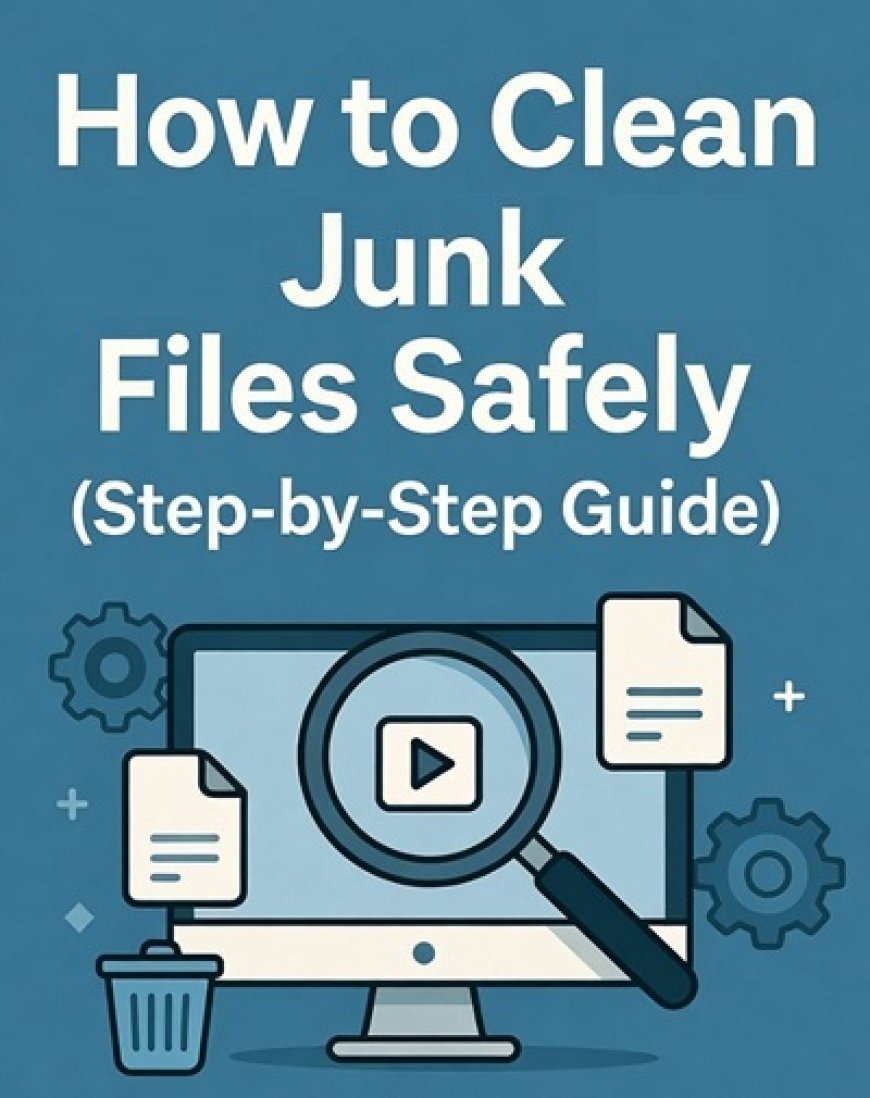
How to Clean Junk Files (Step-by-Step, Easy & Safe)
I still remember the first time I cleaned junk files on my laptop. It wasn’t slow anymore—it breathed easier, booted faster, and stopped freezing randomly. Junk files quietly pile up over time, and most people don’t realize how much space and speed they steal.
Let’s clean them properly—without deleting anything important.
What Are Junk Files (In Simple Words)?
Junk files are temporary, unnecessary files created by:
-
Apps and software installations
-
Browsers (cache, cookies)
-
Windows updates leftovers
-
Deleted programs (residual files)
They’re safe to remove and meant to be temporary—but rarely clean themselves.
Method 1: Clean Junk Files Using Built-In Windows Tools (Best & Safe)
Step 1: Use Disk Cleanup
This is the safest method for beginners.
-
Press Windows + R
-
Type
cleanmgr→ Press Enter -
Select C: Drive
-
Tick these options:
-
Temporary files
-
Recycle Bin
-
Thumbnails
-
Temporary Internet Files
-
-
Click OK → Delete Files
👉 This alone can free 2–10 GB on many systems.
Step 2: Clean System Files (Advanced but Safe)
-
Open Disk Cleanup again
-
Click Clean up system files
-
Select:
-
Windows Update Cleanup
-
Previous Windows installations (if available)
-
⚠️ Only do this if your system is working fine.
Method 2: Delete Temporary Files Manually
Option A: Temp Folder
-
Press Windows + R
-
Type
temp→ Enter -
Select all files → Delete
-
Skip files that can’t be deleted
Option B: %Temp% Folder
-
Press Windows + R
-
Type
%temp%→ Enter -
Delete all files
🟢 These are pure junk files—safe to remove.
Method 3: Clear Browser Junk (Very Important)
Browsers store a LOT of junk.
For Chrome / Edge / Firefox:
-
Open browser
-
Press Ctrl + Shift + Delete
-
Select:
-
Cached images and files
-
Cookies (optional)
-
-
Time range: All time
-
Click Clear data
💡 If your PC is slow only while browsing, this step helps a lot.
Method 4: Uninstall Unused Programs
Unused software = hidden junk.
-
Open Settings → Apps
-
Sort by Size
-
Uninstall apps you no longer use
From experience, removing unused software improves speed and boot time.
Method 5: Use Trusted Cleanup Software (Optional)
If you prefer automation:
-
CCleaner (use carefully, default settings only)
-
Windows Storage Sense (recommended)
Enable Storage Sense:
-
Settings → System → Storage
-
Turn ON Storage Sense
Windows will auto-clean junk periodically.
What NOT to Delete (Important Warning)
❌ Don’t delete:
-
Program Files
-
Windows folder
-
System32
-
Files you don’t recognize
If unsure—don’t delete manually.
How Often Should You Clean Junk Files?
-
Normal users: Once a month
-
Heavy users: Every 2 weeks
-
Old PCs: Weekly
It’s like cleaning your room—small, regular cleaning is better than panic cleaning.
Final Thoughts (From Real Experience)
Cleaning junk files is one of the simplest ways to speed up a computer. No technical skills, no cost—just a little awareness.
Every time my laptop feels sluggish, this is the first thing I do. And it works—almost every time.
If you want, I can also guide you on:
-
Cleaning junk files on Android mobile
-
Automating cleanup
-
Advanced cleanup for old laptops
Just tell me 🙂
What's Your Reaction?
 Like
0
Like
0
 Dislike
0
Dislike
0
 Love
0
Love
0
 Funny
0
Funny
0
 Angry
0
Angry
0
 Sad
0
Sad
0
 Wow
0
Wow
0